Reward Tables
Reward Tables are a way to manage quest rewards dynamically, equivalent to loot tables.
Accessing reward tables
Instead of assigning a fixed reward, you create a pool of items that the reward will be selected from.
Click the settings cog in your questbook (lower right).
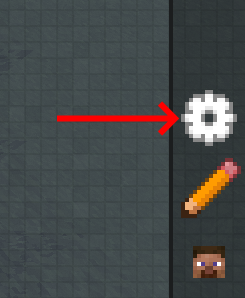

Select "Edit Reward Tables" in the menu, where you'll be taken to create your first reward table.
Types of loot tables
Within the questbook interface, reward tables are created and categorized into various types, which are detailed on the quest rewards page.
- Choice Reward
- All Table Reward
- Random Reward
- Loot Reward
Loot crates
Loot crates reward the player with a Loot Reward upon their use. They keep all the benefits offered by reward tables.
Converting a reward table

After a reward table is created, it can be converted to a loot crate by hovering over it and clicking the loot crate button.
In the following image, we convert a reward table of igneous rocks to a loot crate.
Obtaining the crate as an item
To obtain the crate as an item in-game, you must know its identifier (id). In the previous example, the id was igneous_rocks.

Minecraft 1.20.5 and above use the new component item system when giving items.
/give @s ftbquests:lootcrate[ftbquests:loot_crate="igneous_rocks"]
In a loot table
Loot crates in item form can be included in a standard Minecraft loot table. We'll go through an example.
With the following structure, we create a datapack named SilverfishLootCrateDatapack in our world folder.
world/
└── datapacks/
    └── SilverfishLootCrateDatapack/
        ├── pack.mcmeta <----------------------- Mandatory file for datapacks
        └── data/
            └── minecraft/
                └── loot_tables/
                    └── entities/
                        └── silverfish.json <--- The silverfish loot table
- pack.mcmeta is mandatory and includes your datapack version.
- The file
silverfish.jsonincludes your loot table which contains a loot crate.
In the following code block is the code for the loot table. Notice the use of the component ftbquests:loot_crate with the id of our loot crate, igneous_rocks, to clearly identify this loot crate's contents.
{
  "type": "minecraft:entity",
  "pools": [
    {
      "rolls": 1,
      "entries": [
        {
          "type": "minecraft:item",
          "name": "ftbquests:lootcrate",
          "functions": [
            {
              "function": "minecraft:set_components",
              "components": {
                "ftbquests:loot_crate": "igneous_rocks"
              }
            }
          ]
        }
      ]
    }
  ],
  "random_sequence": "minecraft:entities/silverfish"
}
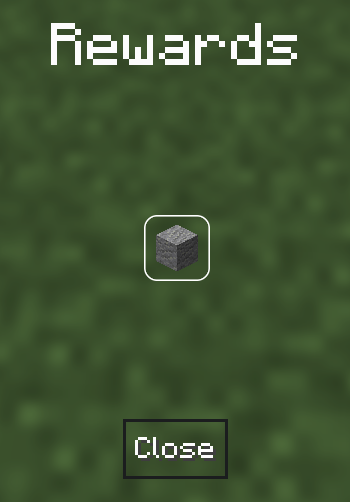
After saving our silverfish.json file, we exit the world and enter it again. Now, silverfish drop the "Igneous Rocks" loot crate on death.
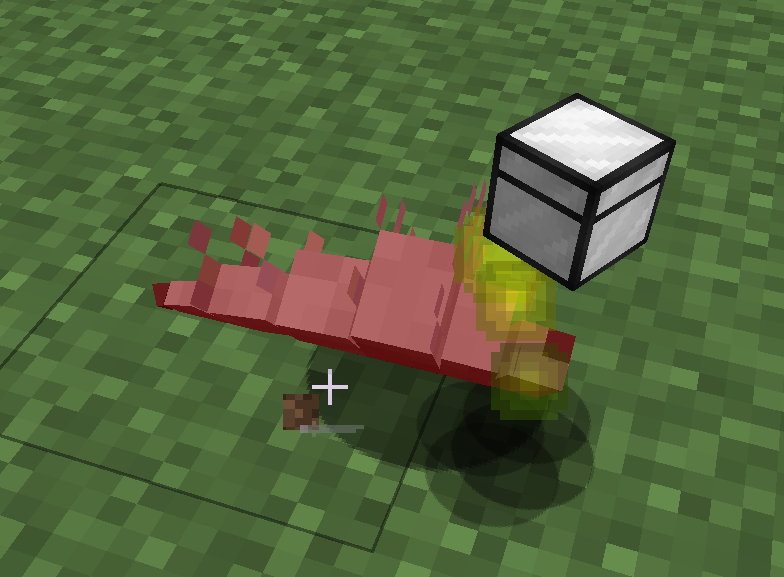
When we open the loot crate from the silverfish, we obtain either one Granite, Diorite or Andesite.
Presets to accelerate development
A few presets can help you create loot crates of various rarities quickly.
By creating a reward table with any name in the "Name" column below (e.g. "common"), and converting it to a loot crate, it will automatically assign some properties.
| Icon | Name | Color (hexcode) | Passive Mob Drop Rate | Monster Drop Rate | Boss Drop Rate | Glow |
|---|---|---|---|---|---|---|
 | common | 0x92999A | 350 | 10 | 0 | false |
 | uncommon | 0x37AA69 | 200 | 90 | 0 | false |
 | rare | 0x0094FF | 50 | 200 | 0 | false |
 | epic | 0x8000FF | 9 | 10 | 10 | false |
 | legendary | 0xFFC147 | 1 | 1 | 190 | true |
Nesting with loot crates
Reward tables and loot crates can be nested in each other.
The "parent" table needs to be a reward table or a loot crate, and the "children" needs to be loot crates.
Nesting example
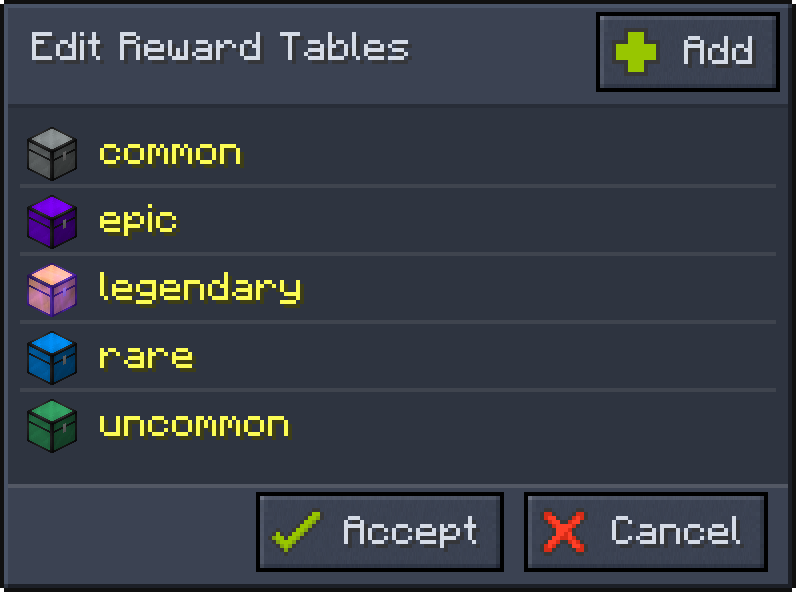
Step 1: Start by creating your children reward tables and convert them all to loot crates. In this example below we have the five rarities.
Step 2: Give yourself all the loot crates using their identifiers (ID).
/give @s ftbquests:lootcrate[ftbquests:loot_crate="common"]
/give @s ftbquests:lootcrate[ftbquests:loot_crate="uncommon"]
/give @s ftbquests:lootcrate[ftbquests:loot_crate="rare"]
/give @s ftbquests:lootcrate[ftbquests:loot_crate="epic"]
/give @s ftbquests:lootcrate[ftbquests:loot_crate="legendary"]

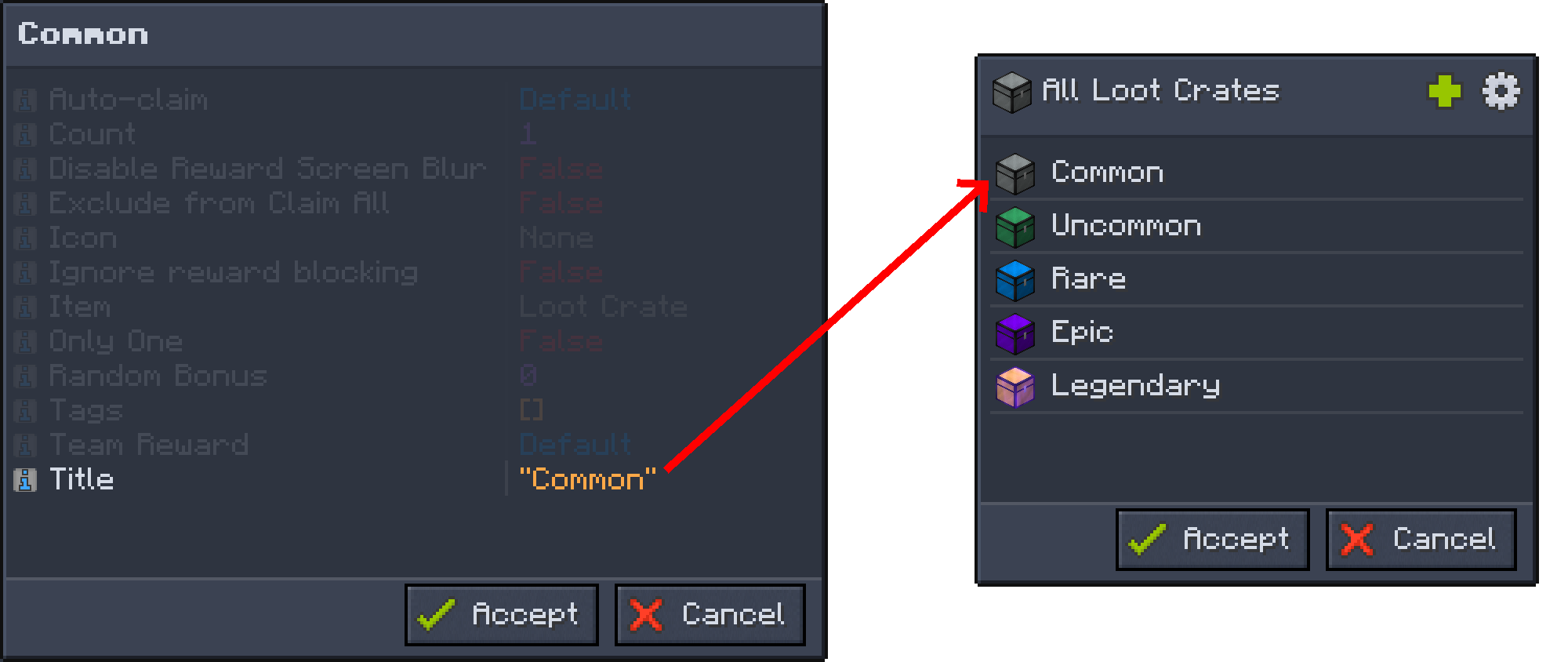
Step 3: With the loot crates in your hotbar, create a new parent reward table. We will call it "All Loot Crates" for this example.

Step 4: Add each of the children loot crates to the parent reward table by clicking the "Add" button.

For this example we do this until we get the following.

Step 5 (optional): Before hitting "accept", you can click each of the loot crates and rename the titles. Much cleaner!
Step 6: Hit accept until you are back at quest creation.

Step 7: Create a quest, create a "Loot Table" reward and set it to your parent reward table (in this example, "All Loot Crates").

Now your players can truly receive a random assortment of items; the possibilities are limitless!